Create BACS Submission From File


How to create a BACS submission from a file
Selecting the "Create BACS Submission From File" menu option will display the page shown below.
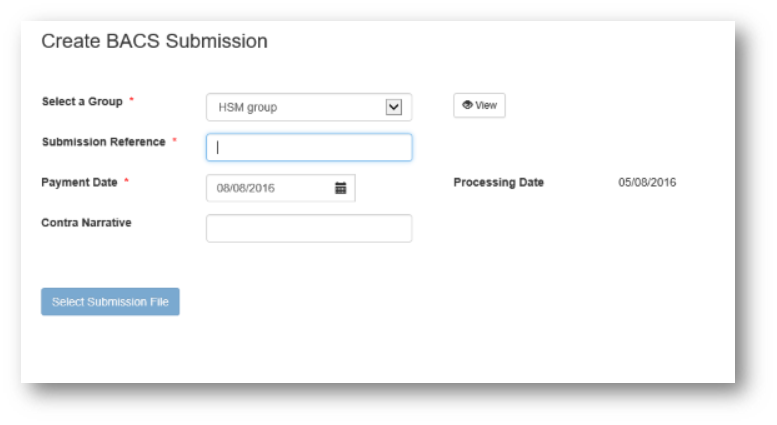
Select a Group
In PayGate all payments are made within a group. Before you can create your payment you must choose a group using the group selector.
The selector contains all of the groups in which you have the "Create" payment role.
If your administrator has set a default or "favourite" group for you, this will be automatically selected.
There is a "View" button to the right of the group selector. Clicking this will show the originating bank details linked to the selected group.
Submission Reference
Every submission needs a reference. This is primarily to allow users to identify submissions as they proceed through the submission process.
When a reference has been entered, the "Select Submission File" and "Create New Submission" buttons will become enabled.
Payment Date
BACS payments can only be processed Monday to Friday excluding UK bank holidays.
The usual sequence is to submit the payment file to BACS one day, have the file processed the next day with the payments being credited or debited from bank accounts the day after that.
The payment date defaults to the next possible payment date.
You can change the Payment Date via the date picker.
Clicking the date picker will display the current month. Only valid payment dates can be selected as shown below.
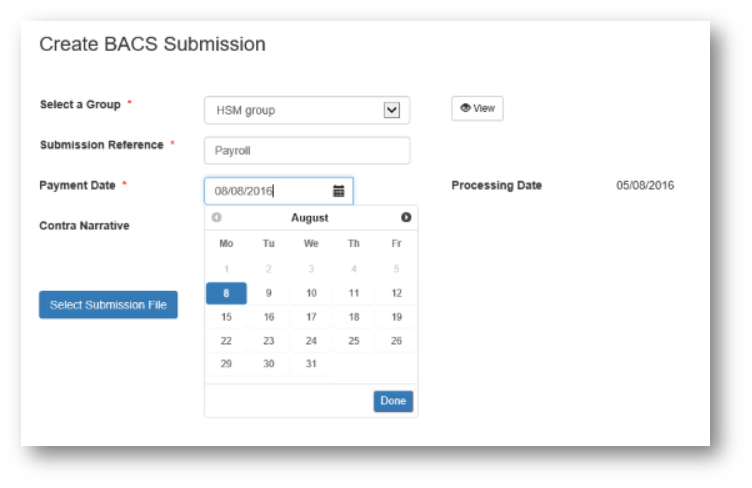
In the above screenshot, the current date is Thursday 04/08/2016.
So the next valid processing date is Friday 05/08/2016 as shown alongside the "Processing Date".
This makes the next possible payment date Monday 08/08/2016 which is why it's the default date.
Contra Narrative
This is an optional field which can contain a maximum 18 characters.
A "contra" payment is essentially a balancing payment.
E.g. Imagine a payment file with 5 payment credit items totalling £500. The file submitted to BACS will also have a balancing debit contra item of £500.
The "Contra Narrative" will appear in the submitted file and on a BACS "Input" report which some customers use to reconcile payments.
If this field is left blank, the contra narrative will default to the originating bank account name; if the bank account name is blank then the contra value will default to the Bank Account Name.
Select Submission File
After entering a Submission Reference, the "Select Submission File" button will be enabled.
Clicking this button will open a payment file selection dialog as shown below.
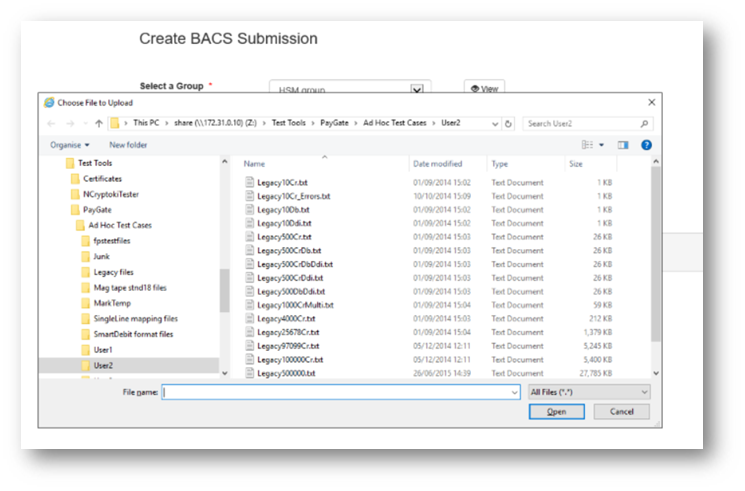
Select a payment file either by double-clicking the required file or by selecting a file and clicking the "Open" button.
After selecting a payment file, it will be uploaded to PayGateOnline. A file upload bar showing the upload progress will be displayed.
Imported Payments
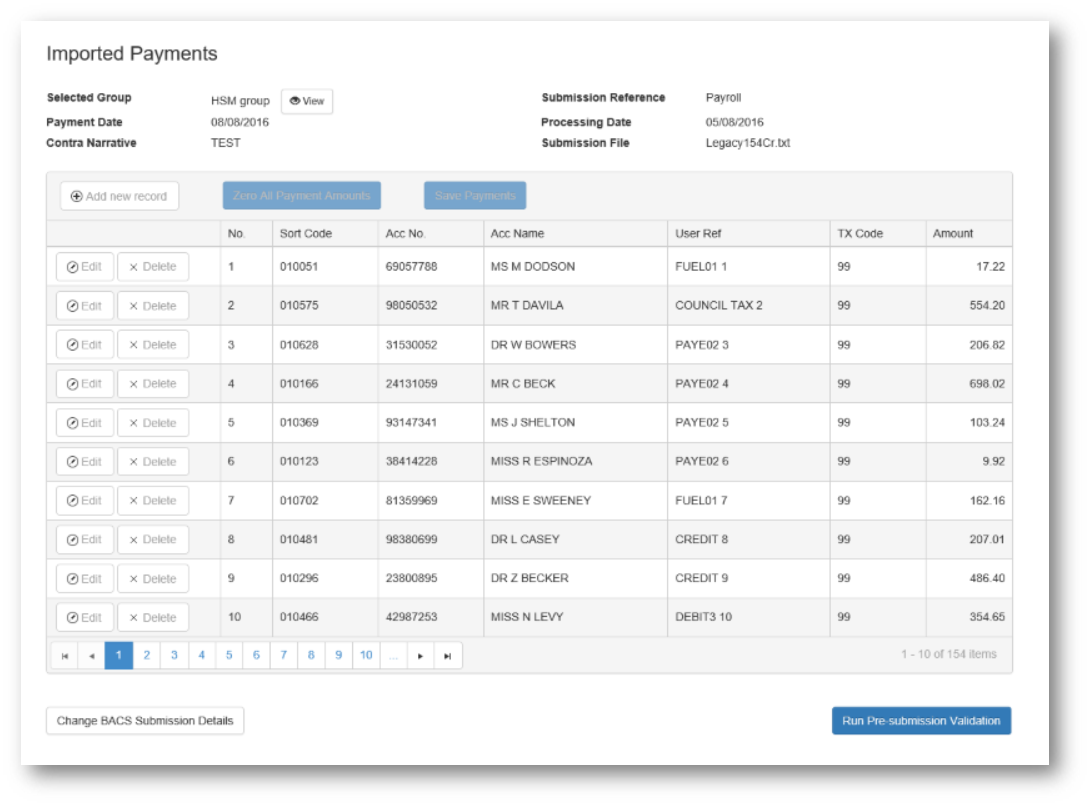
When your payment file has been successfully uploaded and processed, the following screen will be shown.
This allows you to verify that the correct file has been uploaded and provides a warning if you've uploaded the same file within the last month.
Editing Payments
Users can edit, delete or add payments provided they have permission to do so for the selected group.
A user can have different permissions for each group.
Clicking the "Save Payments" button allows you to save the edited file to disk meaning it could be imported at a later date.
The amounts of an imported file can be set to zero via the "Zero All Payment Amounts" button.
An example of using this feature would be to import a file for paying staff expenses. The names would remain fairly constant but the amounts would differ each time.
So the amounts could be set to zero then manually changed for each person.
Clicking the "Change BACS Submission Details" button will take you back to the "Create BACS Payment" page allowing a different file to be selected.
The same can be achieved by clicking the "Create BACS Submission From File" menu item on the "breadcrumbs" control.
When one of these options is selected, you will be shown a warning that any changes will be lost if you continue.
Pre-submission Validation
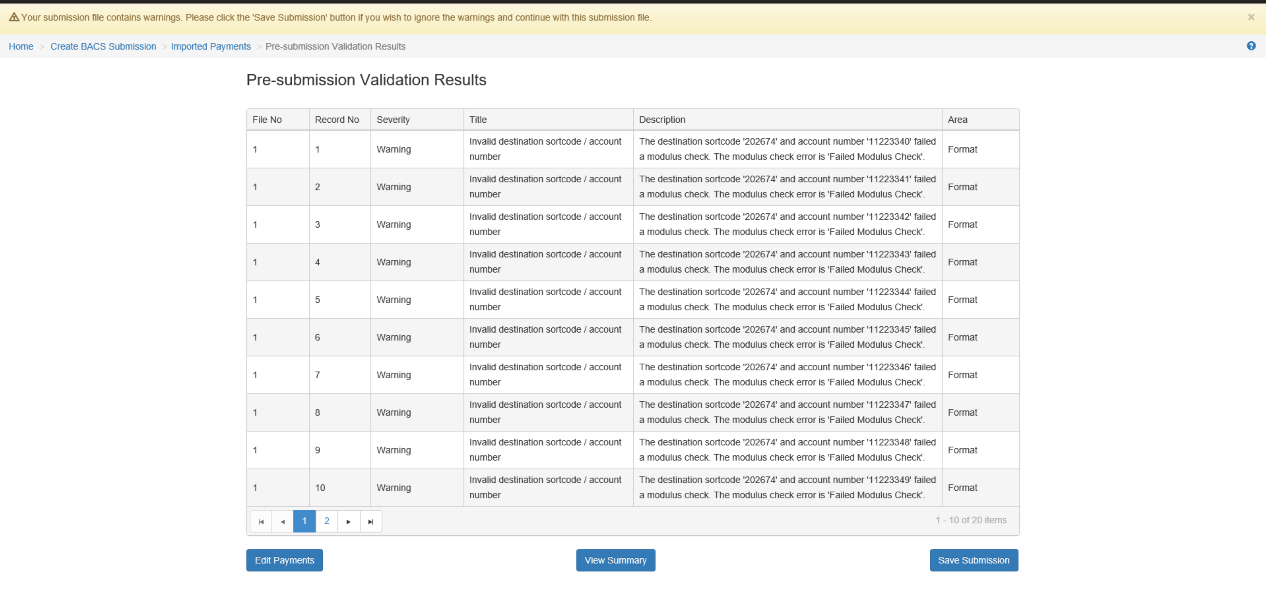
Clicking the "Run Pre-submission Validation" button will validate the payments prior to submitting the payment file to BACS.
Any serious issues will prevent you from proceeding and must be fixed before continuing with the selected payment file.
After the pre-submission validation has finished, the results are shown. The actual details on the screen will vary depending on the payment file being validated.
An example is shown below.
Following pre-submission validation the user can use the Imported Payments screen to add new records, correct errors within existing records
or delete payments completely.
View Submission Summary
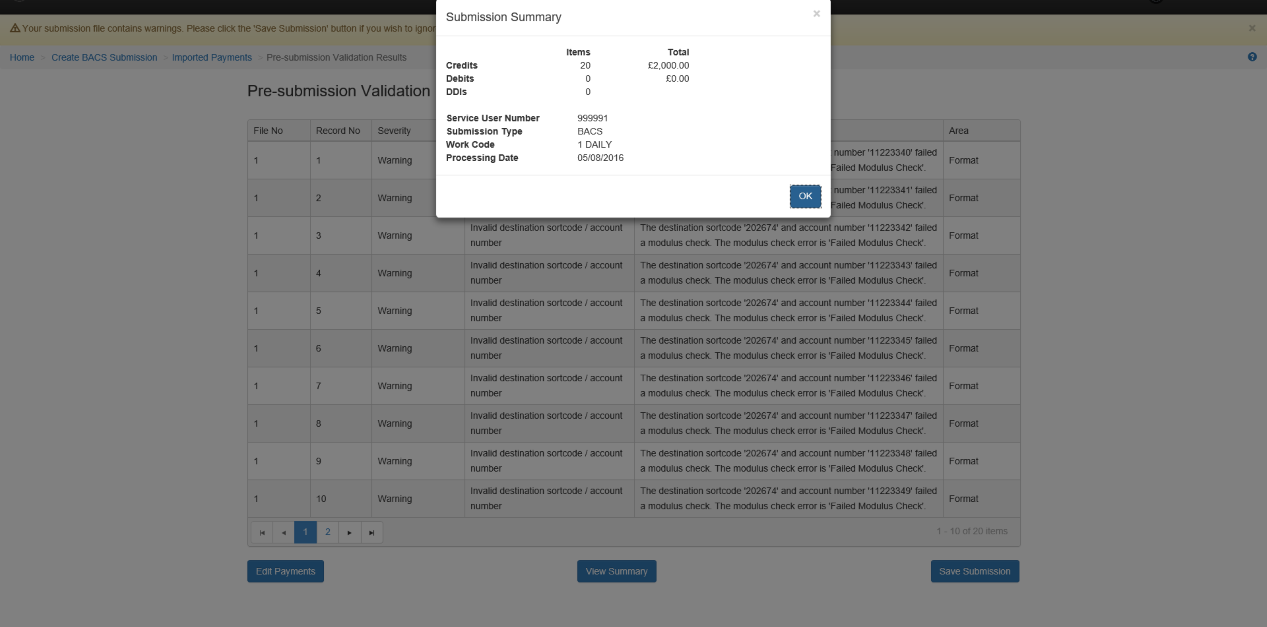
Click the "View Summary" button to show the details of the submission as shown below.
Edit Payments
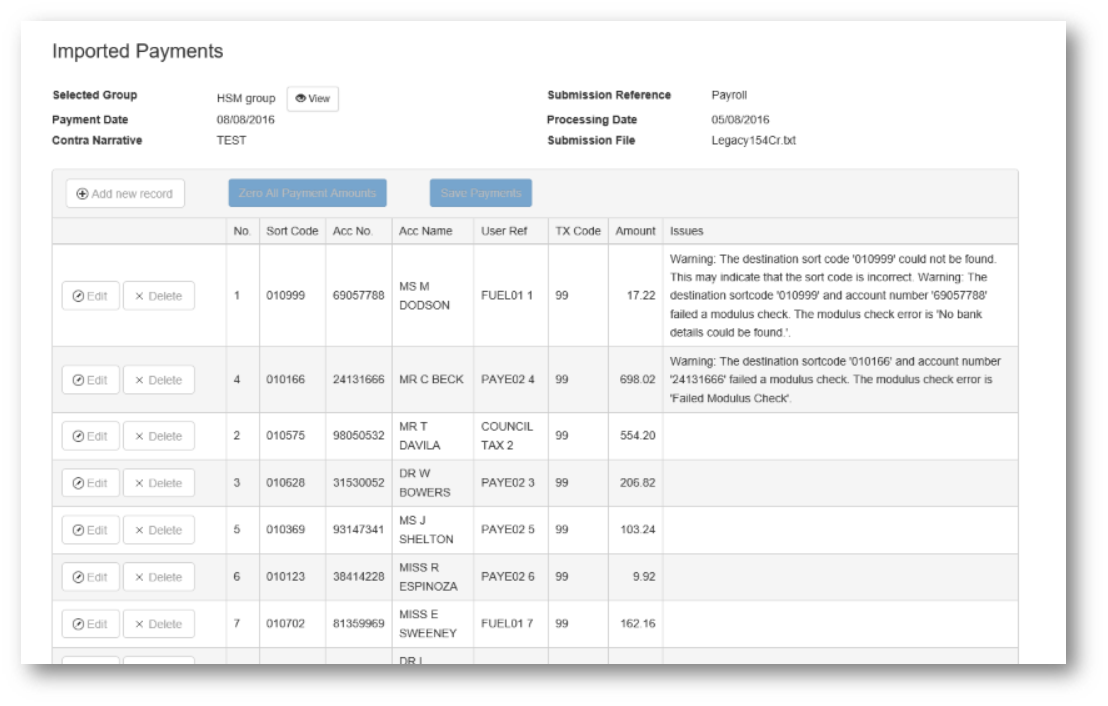
Click "Edit Payments" to return to previous "Imported Payments" page.
As shown below, the payments are sorted by the severity of the pre-sub validation message;
fixes are shown first, followed by warnings and finally those payments which were validated successfully.
Save Submission
To finish the submission creation process, click the "Save Submission" button.
Everyone who has the "Sign" role in the group that was selected for this submission will receive a signing action.
After the submission has been saved, you will usually be sent to the "Action List" page.