Find Payments


This page allows you to search for previously created payment submissions meaning you can review which payments were sent in a submission. You can also view the submission confirmation report.
The initial page is shown below.
NB. The default search criteria is to return only the first 100 payments ordered by the date the submission was created with the most recent one first.

The search criteria options are described below. Select the search options you require; none of them are mandatory.
Payment Type
Current options are "All", "BACS" or "FPS" for faster payments. Selecting "All" will include both "BACS" and "FPS".
From Date and To Date
You can search for submissions which were created within a date range.
Entering a From Date or selecting a date from the date picker will retrieve payments created on or after this date.
Entering a To Date or selecting a date from the date picker will retrieve payments created on or before this date.
NB. You don't need to enter both a From Date and a To Date. For example:
From Date |
To Date |
Result |
01/06/2014 |
|
Find submissions created on or after 01/06/2014 |
|
30/06/2014 |
Find submissions created on or before 30/06/2014 |
05/06/2014 |
11/06/2014 |
Find submissions created between these dates |
Show advanced search options
Clicking the Advanced Search link will show some additional search options which are shown below.
Any advanced options selected will be used in the search regardless of whether the advanced options are visible or not.

Payment Reference
This is the reference entered when creating the submission.
Payment Created By
This is the user who created the submission.
Payment Group
The selected group when the submission was created.
Sort By
You can choose to have your search results sorted by some of the search options.
The current sorting options are "None", "Bank Account", "Created On", "Group", "Payment Type" and "Reference".
"None" means that the search results won't be sorted.
Sort Direction
The search results can be sorted in ascending or descending order.
E.g. To search by date showing the latest submission first you would choose the Sort By of "Created On" with a Sort Direction of "DESC".
Max Rows to Return
The default value is 100 regardless of whether the advanced search options are visible or not. Selecting a smaller number might make it easier to find a specific payment.
Run Search
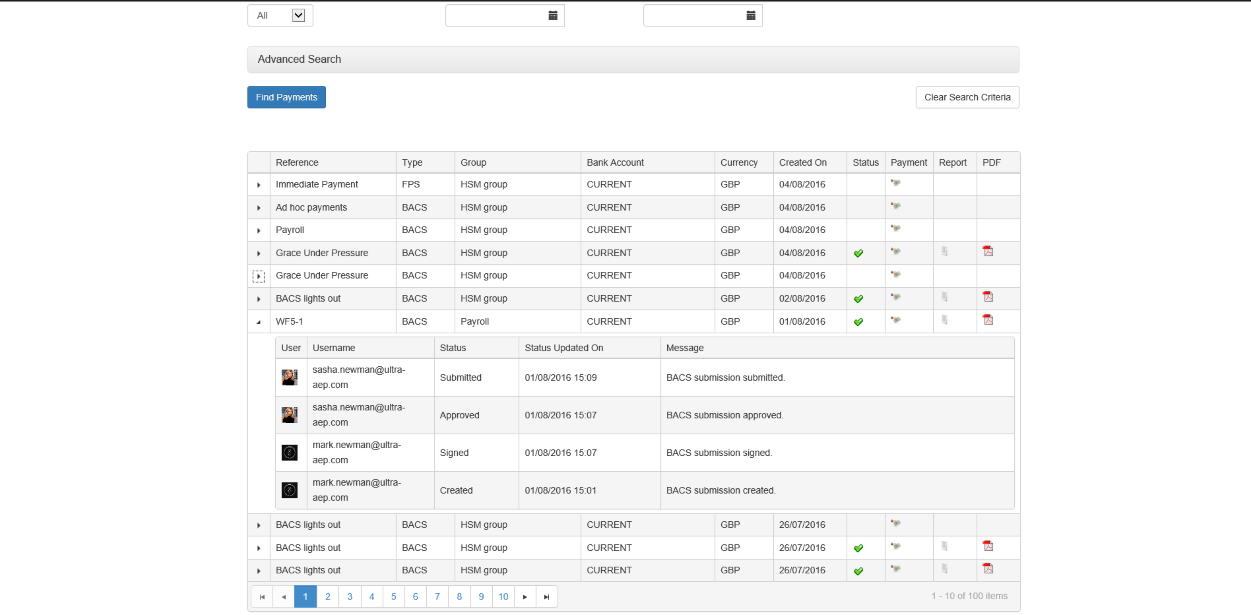
Clicking the "Find Payments" button will begin the search. An example of returned search results is shown below.

Search Results
The search results grid has additional options.
The icons in the "Payment" column are links; clicking on one of these will take you to the View Submission page allowing you to review the submission.
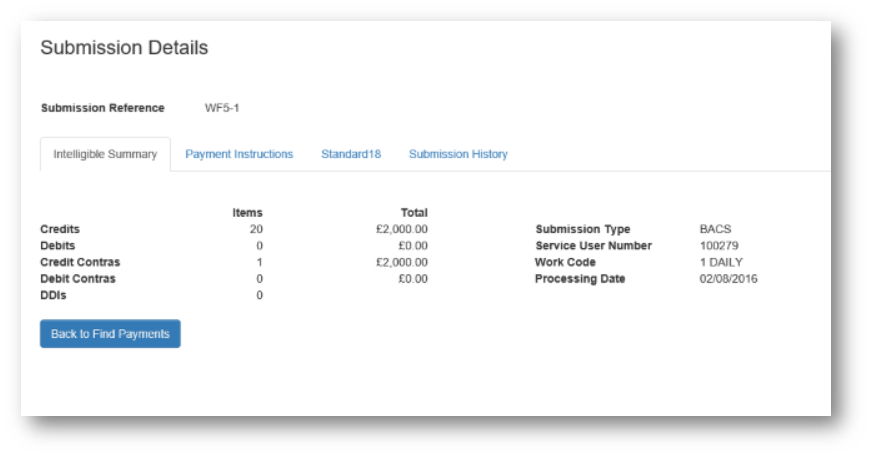
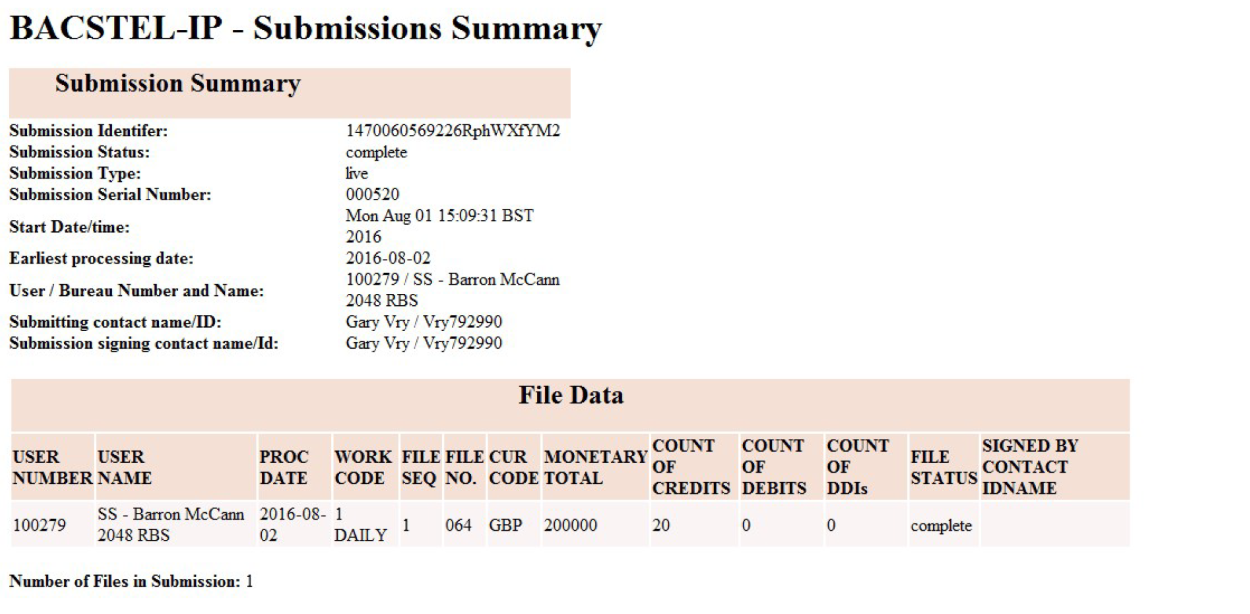
Clicking on one of the icons in the "Report" column will show the submission confirmation report in a new browser tab or window as shown below.

To show the confirmation report as a PDF click one of icons in the "PDF" grid column. This will show the report as a PDF in a new browser tab or window as shown below.
The left-hand grid column is unititled but has a "row expander" button. Clicking on this will show the details of which user performed each stage of the submission process. An example is shown below.
Clear Search Criteria
Clicking the "Clear Search Criteria" button will reset the page to how it looked when you first viewed the page including the search results grid being hidden.